How to Edit Your Analysis
If something in your analysis doesn't look right, you don't have to start over. Every analysis page has its own "Regenerate" button that you can use to update that specific section.
Short answer: Open your idea, go to Analysis, choose the page you want to change (e.g. Market Analysis, Target Groups, Competition), and click the Regenerate button. Pick "Regenerate" for a fresh version, or "Regenerate with Prompt" to tell the AI what to do differently.
Go to the section you want to change
Open your idea and head to the Analysis tab. Your analysis is split into sections like Market Analysis, Target Groups, Competition, SWOT, and so on.
Scroll to whichever section you want to update. You'll see a Regenerate button at the top right of each section.
Pick your regeneration option
Click the Regenerate button and you'll see two choices:
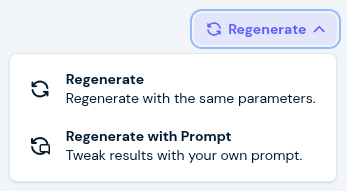
Tell the AI what to change
If you picked Regenerate with Prompt, a dialog will pop up with a text field. Just type what you want the AI to do differently. Note: The character limit depends on your subscription plan.
Hit Regenerate when you're done, and the section will be updated with your instructions in mind.
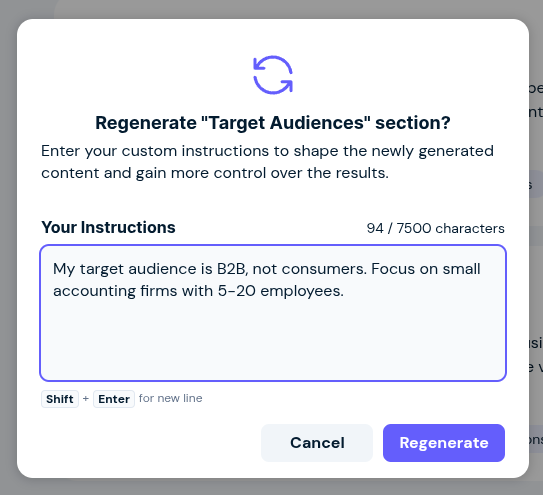
Not sure what to write? Here are a few examples that work well:
"Focus the competition analysis on the German market. My main competitors are [Company A] and [Company B]."
Helpful when the AI picked the wrong competitors
"My target audience is B2B, not consumers. Focus on small accounting firms with 5-20 employees."
Helpful when the target group is off
"Add more detail about regulatory risks for fintech startups in the EU."
Helpful when a section is too shallow
"This is a local service in Sao Paulo, not a global SaaS product. Adjust the market size."
Helpful when the regional scope is wrong
Tip: You can regenerate the same section multiple times until you're happy with it. Only that one section gets updated. Everything else stays the same.
FAQ
Does regenerating a section change anything else in my plan?
Does regenerating a section change anything else in my plan?
No. Only that specific section gets regenerated. Your other analysis sections, branding, business plan, and financials are not affected.
How many times can I regenerate?
How many times can I regenerate?
Each regeneration uses one of your available generations. How many you have depends on your plan. You can check your remaining generations under the Usage section in your account dropdown.
Can I undo a regeneration and go back to the old version?
Can I undo a regeneration and go back to the old version?
Not right now. Regenerating replaces the current content, so make sure to review the result before regenerating again.
The AI totally misunderstood my idea. Should I regenerate or start fresh?
The AI totally misunderstood my idea. Should I regenerate or start fresh?
If just one or two sections are off, use Regenerate with Prompt to fix them. That's faster and more targeted. If most of the analysis missed the mark, you're probably better off creating a new idea with a more detailed description.
Was this helpful?
Still need help? Ask the team